Screenshot translator

A screenshot translator for anything on a screen you cannot read: an app in another language, a game menu, a chat, an error message or a web page you cannot select. Upload the screenshot and get each line translated in a text panel you can copy, or the same screenshot redrawn with its interface text in your language.

Updated

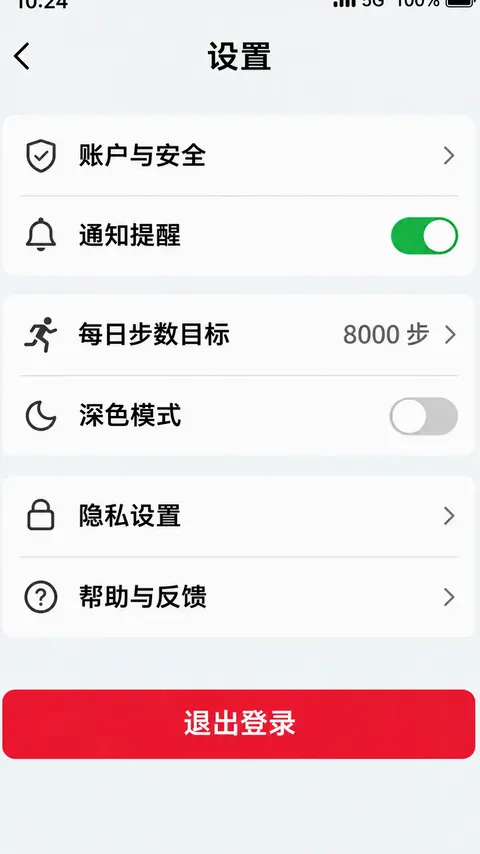
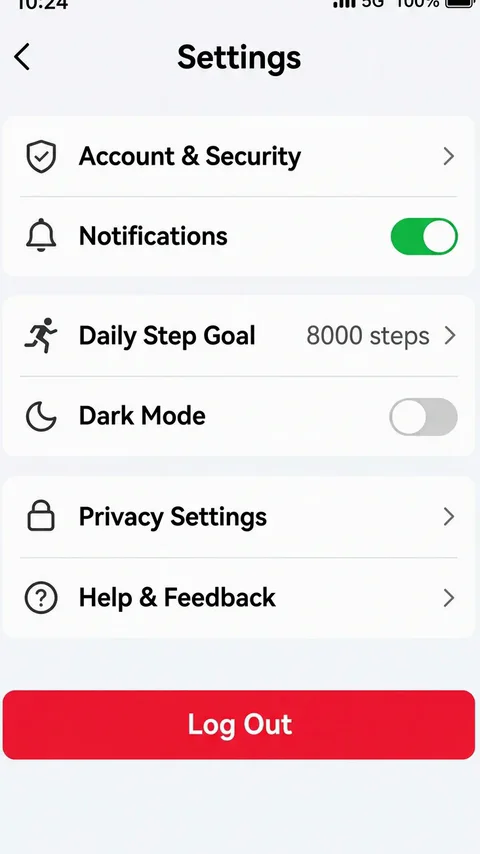
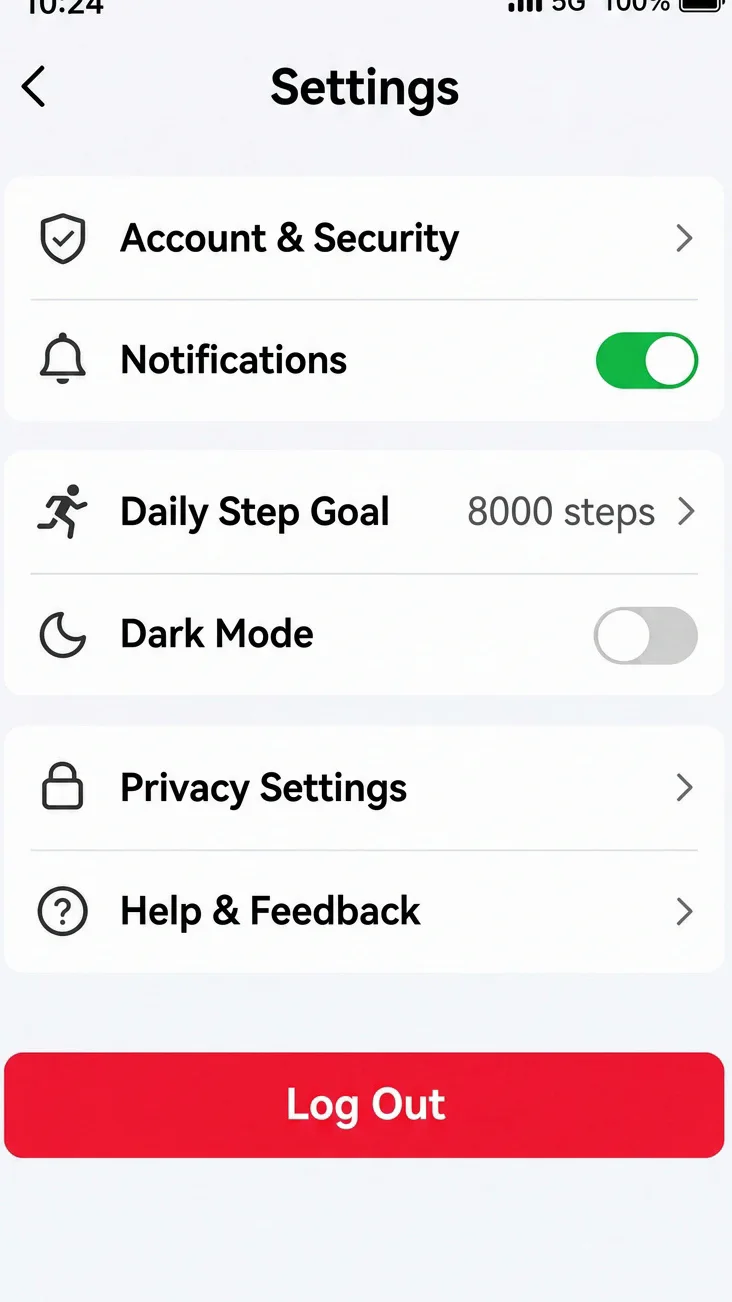
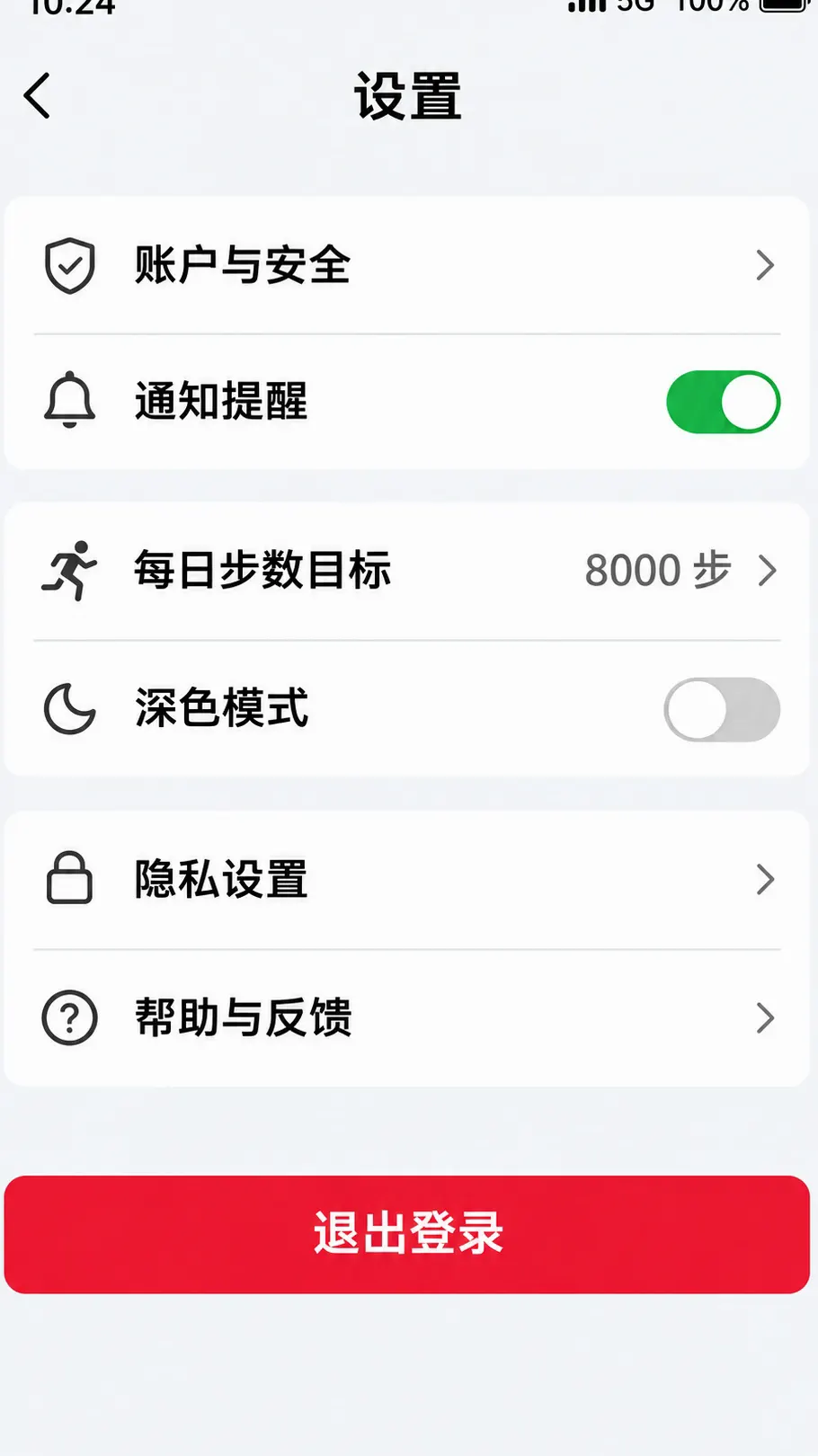
A Chinese app settings screenshot translated into English, toggles and layout unchanged: OriginalA Chinese app settings screenshot translated into English, toggles and layout unchanged: Translated
A real runSimplified Chinese → English, same layout and fonts

Output

Model

Size

Fast and low cost; strong on menus, signs and screenshots.

This translation costs27 credits
Sign up free: 27 credits

Your free credits cover one translated 1K image with its text panel (27 credits).

How it works

  1. 1

    Upload the screenshot

    PNG works best for screenshots. Up to 10 MB each and up to ten per run.

  2. 2

    Choose the language and output

    Text-only mode returns a copyable panel. Add the translated image if you need a localised screenshot.

  3. 3

    Copy or download

    Copy lines from the panel or download them as TXT, and save the translated screenshot.

Good for

  • Apps and games that are only available in another language
  • Error messages and settings screens you need to understand
  • Chats, comments and posts shared as images
  • Creating translated screenshots for app store listings and help docs
A Chinese app settings screenshot translated into English, toggles and layout unchanged: TranslatedA Chinese app settings screenshot translated into English, toggles and layout unchanged: OriginalOriginalTranslated
zhen

A Chinese app settings screenshot translated into English, toggles and layout unchanged

Instruction: Translate every piece of text that is not already in English in this image into English. Keep the exact same layout, font style, size, colour, positions and background; change only the words. Keep the picture, people, objects, logos and numbers as they are, at the same size and position. Do not crop, zoom, add borders, captions or watermarks.

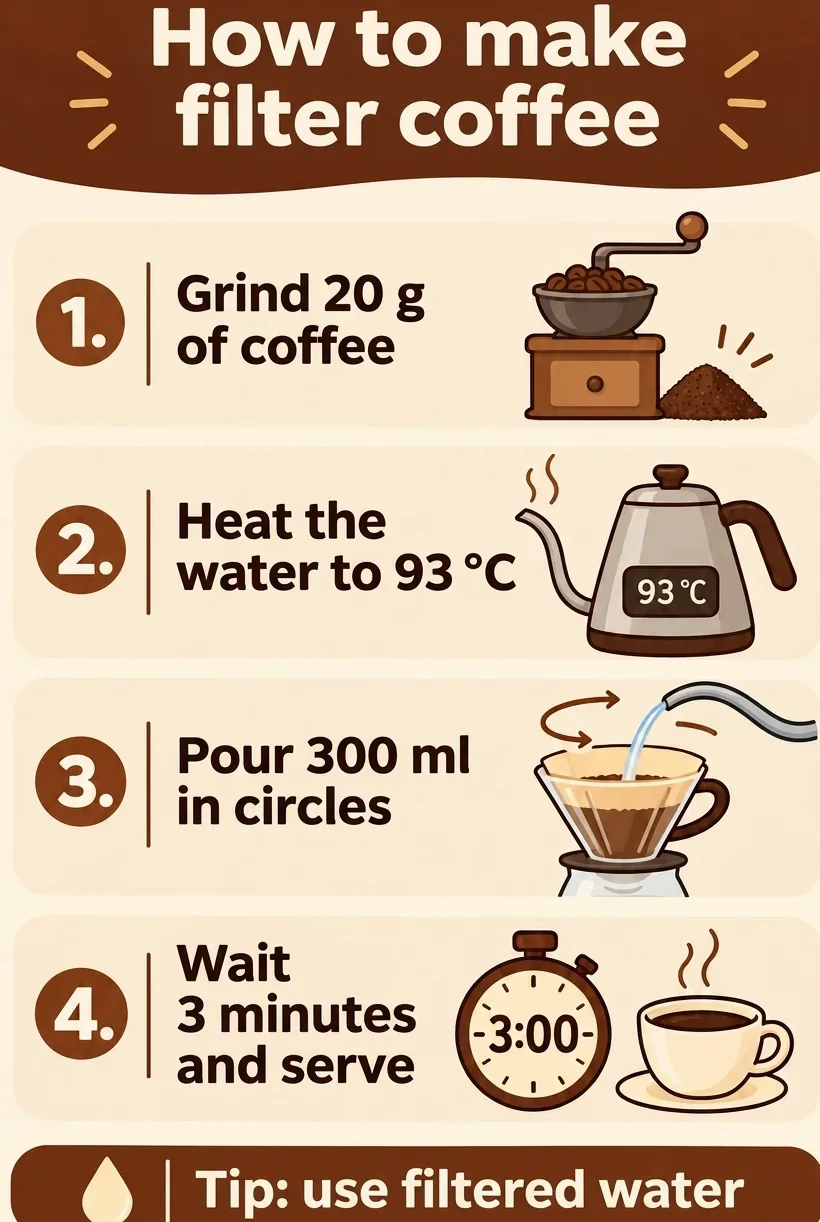
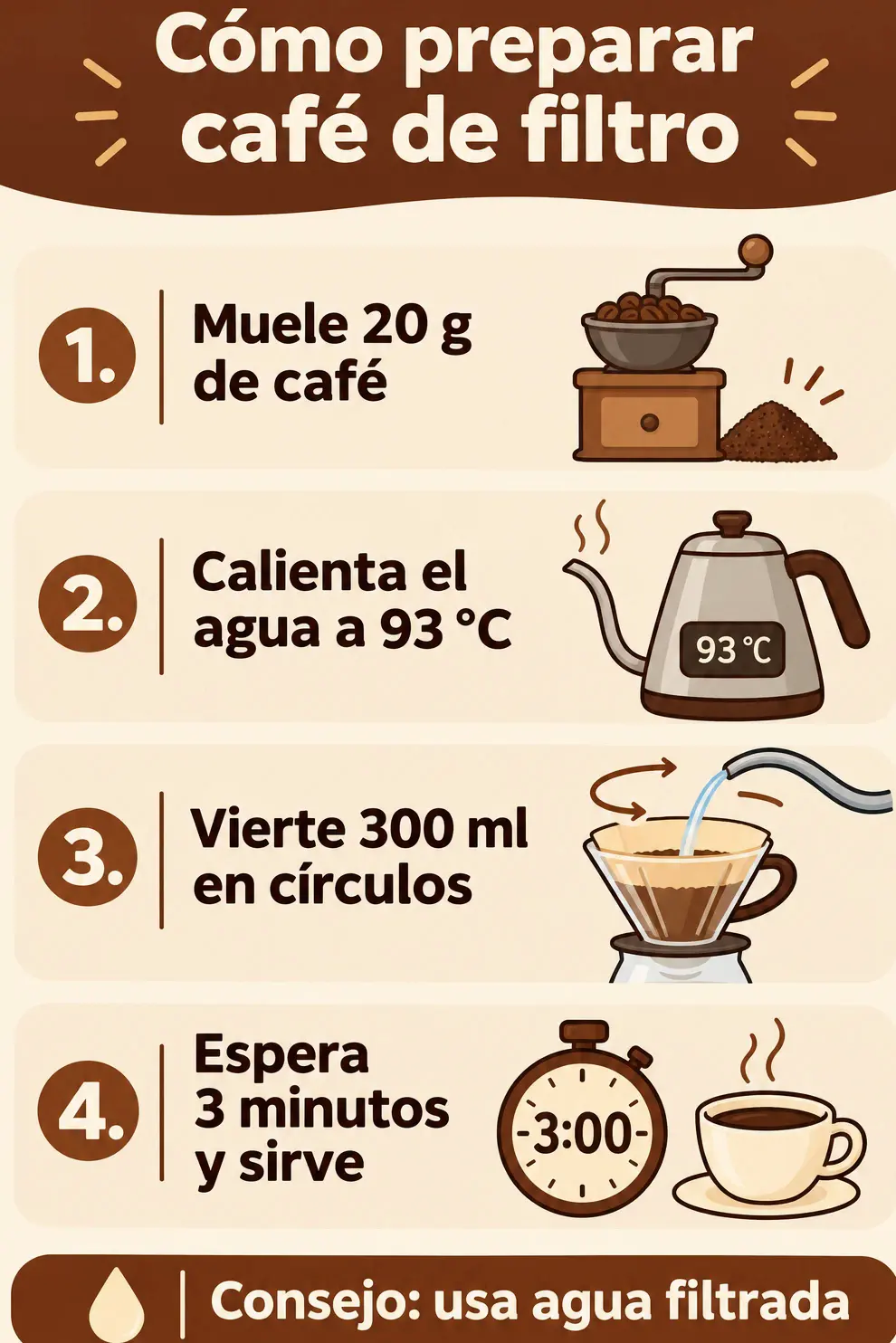
A Spanish four-step coffee infographic translated into English with the same icons: TranslatedA Spanish four-step coffee infographic translated into English with the same icons: OriginalOriginalTranslated
esen

A Spanish four-step coffee infographic translated into English with the same icons

Instruction: Translate every piece of text that is not already in English in this image into English. Keep the exact same layout, font style, size, colour, positions and background; change only the words. Keep the picture, people, objects, logos and numbers as they are, at the same size and position. Do not crop, zoom, add borders, captions or watermarks.

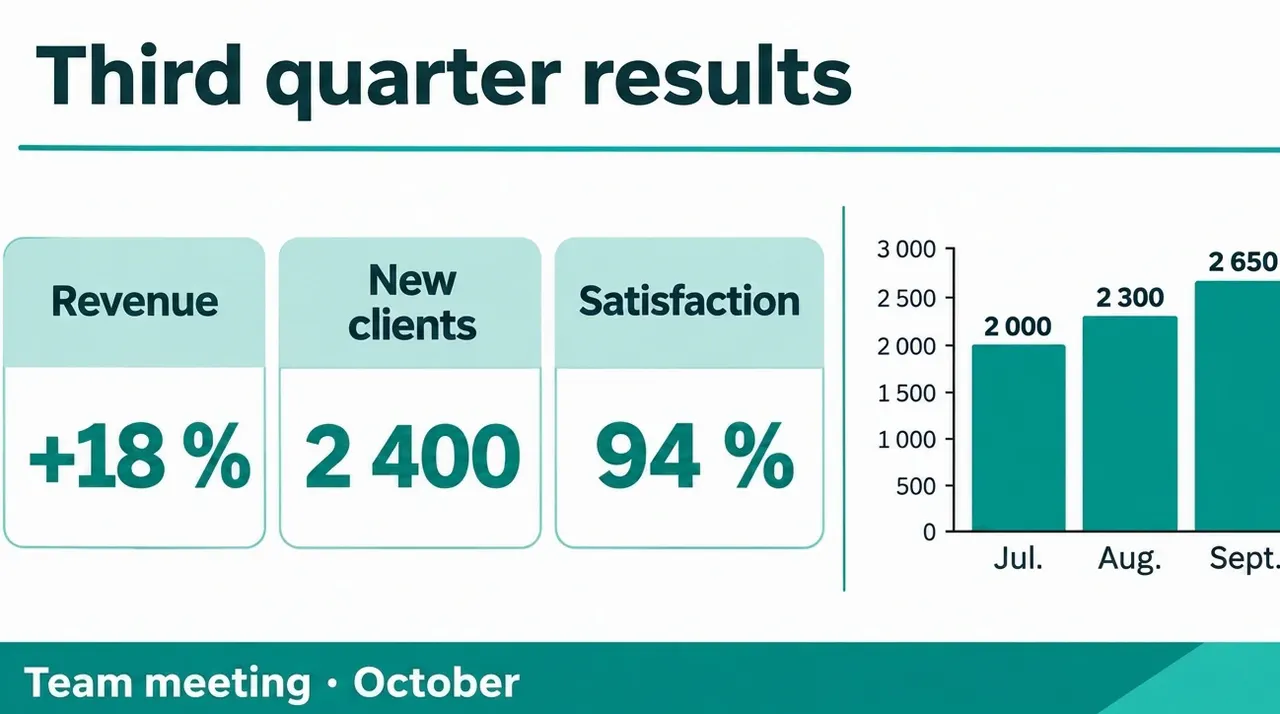
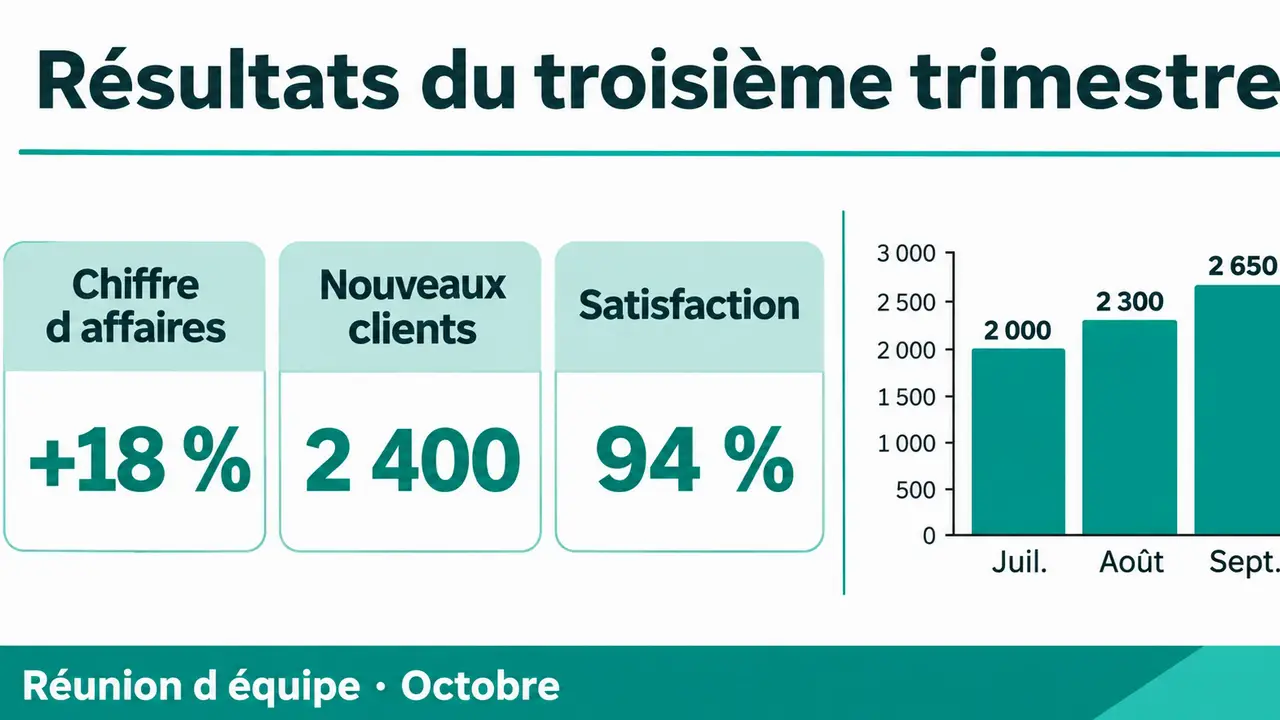
A French quarterly results slide translated into English, chart and figures kept: TranslatedA French quarterly results slide translated into English, chart and figures kept: OriginalOriginalTranslated
fren

A French quarterly results slide translated into English, chart and figures kept

Instruction: Translate every piece of text that is not already in English in this image into English. Keep the exact same layout, font style, size, colour, positions and background; change only the words. Keep the picture, people, objects, logos and numbers as they are, at the same size and position. Do not crop, zoom, add borders, captions or watermarks.

01

Reading a screen versus localising it

Most of the time you just need to know what a screen says, and the text panel is the fastest way: every label, button and message appears with its translation, ready to paste into a search box or a support ticket. When you need a screenshot that looks native in another language, for example for an app store listing or a help article, the translated image redraws the interface text in place.

02

Interface text and tight spaces

Buttons, tabs and menu items leave little room, and many languages run longer than English. GPT Image 2 keeps translated lines closest to the original length, so it is the better pick for interface screenshots. Use the note to keep product names, commands or code untouched, for example "do not translate the app name".

Credits per image

The translator shows the exact cost before you run anything. Plans and credit packs

ModelGood for1K2K4K
Nano Banana 2.1Everyday images: menus, signs, screenshots162334
GPT Image 2Posters, ads and dense lettering233861
Gemini 3 FlashText panel: every line and its translation11

Questions

Can I translate a photo of a screen instead of a screenshot?

Yes, but a real screenshot is sharper and has no moiré or glare, so fewer lines are missed. Use one when you can.

Does it work for game screenshots?

Yes. Menus, dialogue boxes and item descriptions translate well. Stylised game fonts are harder to read, so check the panel for lines that look off.

Can I translate several screenshots at once?

Up to ten per run. Each screenshot is its own job with its own panel and result.

Are my screenshots private?

Yes. They are visible only in your account, there is no public gallery, and they are sent only to the AI services that run the job.